
TL;DR
Open a free Amazon Business account
Business pricing, bulk buying and tax-exempt orders.
Create a free accountAs an affiliate, we earn on qualifying purchases.
Managing multiple time zones on your phone keeps your schedule on track. Use built-in features, automatic updates, and third-party apps to stay synchronized no matter where you are in the world.
Ever had a meeting canceled because you mixed up the time zones? Or missed a flight because you didn’t account for daylight saving shifts? If you’re living a multi-zone life—whether traveling, working remotely, or coordinating with international friends—your phone can be your best tool for staying in sync. But only if you set it up right.
This guide walks you through the essentials of managing multiple time zones on your device. You’ll learn how to use your phone’s built-in features, when to trust automatic updates, and which third-party apps can make life simpler. Ready to turn your phone into a multi-time zone powerhouse? Let’s get started.
Use your phone’s built-in world clock to add and monitor multiple cities, saving time and avoiding errors.
Enable automatic time zone updates when traveling, but verify manually for planning future events.
Third-party apps can provide more detailed controls and customization for busy schedules.
Always double-check daylight saving shifts—don’t assume automatic updates will catch every change.
Schedule meetings during overlapping hours and communicate clear local times to prevent mishaps.
World Clock Basics: Setting Up Your Phone for Multi-Zone Life
Travel, remote work, international friendships and global meetings all depend on one deceptively simple detail: knowing what time it is for everyone else. Configure your phone once, verify the exceptions, and turn time-zone confusion into a quick glance.
Your phone is already a multi-zone control center—if you give it the right cities and settings.
World Clock Site reports that more than 70% of frequent travelers rely on smartphone multi-zone features to coordinate calls and meetings.
Use smartphone multi-zone tools to coordinate across locations.
Add the cities that matter without cluttering the display.
Network or GPS time works well for present-location changes.
Check future events, border regions and DST transitions manually.
Add your essential cities
Keep the list selective. A compact set of relevant cities is faster to scan and less likely to cause mistakes than a wall of clocks.
Open Clock
Launch the built-in Clock app on iPhone or Android.
Choose World Clock
Find the tab dedicated to cities and global times.
Tap Add
Select the plus symbol or the app’s Add control.
Search Cities
Add hubs such as London, Tokyo and New York.
Order by Priority
Put your home, team and next destination at the top.
Automatic, manual—or both?
Automatic time is the best everyday default. Manual zone management becomes valuable when you are planning ahead or protecting a recurring international schedule.
Automatic
Your phone uses network or location information to update the local time as you move.
- Best for arrival in a new zone
- Requires minimal attention
- Verify after flights or weak signals
Manual
Fixed zones give you predictable reference points when scheduling events weeks in advance.
- Best for future and recurring calls
- Useful for complex zone combinations
- Requires regular review
Hybrid
Keep device time automatic while using named city zones inside clocks and calendar events.
- Local clock follows your movement
- Events retain geographic context
- Manual checks cover DST risk
Built-in clock vs. specialist apps
Native tools cover most everyday needs. Dedicated apps earn their place when coordination becomes a substantial part of your workday.
| Capability | Built-in clock | Third-party app | Best choice |
|---|---|---|---|
| Quick city checks | ✓ Excellent | ✓ Excellent | Built-in |
| Setup simplicity | ✓ Integrated | ~ New interface | Built-in |
| Widgets and layouts | ~ Limited | ✓ Flexible | Third-party |
| Complex scheduling | ✗ Basic | ✓ Advanced | Third-party |
| Cross-device sync | ~ Ecosystem-based | ✓ Often broader | Depends on workflow |
| Typical examples | Apple World Clock, Android Clock | World Time Buddy, Every Time Zone, Time Zone Converter | Match complexity |
Upgrade when coordination becomes work
If you regularly compare many regions, need visual overlap windows or coordinate across devices, a dedicated tool can reduce repeated mental arithmetic.
Protect the hour that moves
Daylight saving rules differ by place and can change through legislation. Automatic updates help, but an important international event deserves a second check.
A one-hour shift can break the plan
A meeting displayed as 3:00 PM may effectively move by an hour when one participant’s region changes clocks before another region does.
DST verification checklist
- 1Check whether every participant’s region observes daylight saving time.
- 2Review transition dates for meetings near spring and autumn changes.
- 3Create calendar events with named geographic zones, not fixed offsets alone.
- 4Reconfirm the local time shortly before the event.
The no-surprises scheduling chain
Reliable multi-zone coordination is a connected process. Each link protects the next one—from the city you select to the confirmation another person receives.
Keep device time automatic, maintain a short list of essential cities, schedule with named time zones and manually verify DST-sensitive events. Built-in clocks are enough for simple coordination; specialist apps help when multi-zone planning becomes frequent or complex.
How to Add Multiple Cities to Your Phone’s Clock — The Simple Step-by-Step
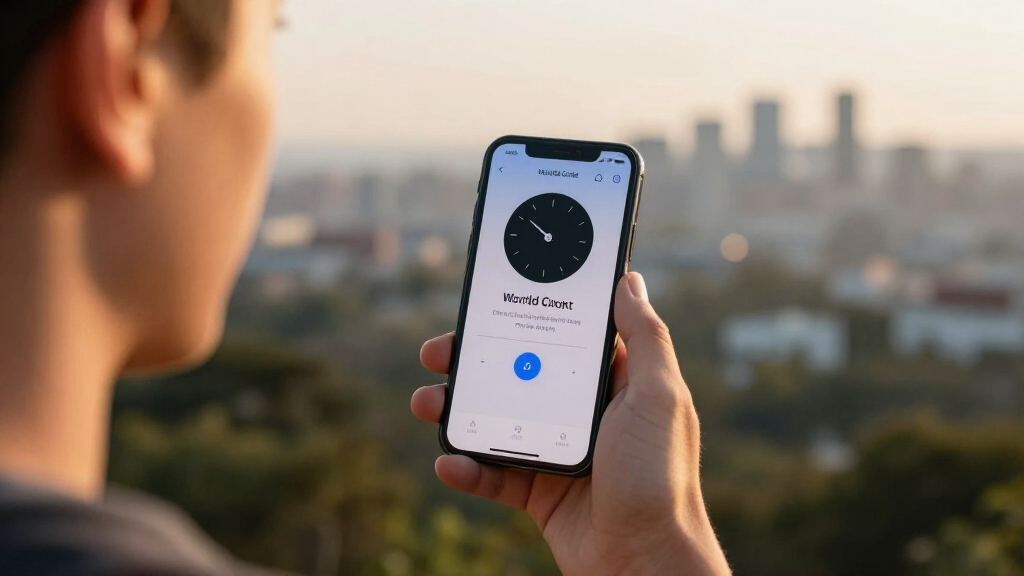
Most smartphones have a built-in world clock feature that makes monitoring multiple time zones a breeze. Here’s how to set it up:
- Open your clock app—on Android or iPhone.
- Navigate to the ‘World Clock’ tab.
- Tap ‘Add’ or the ‘+’ icon.
- Search for cities you frequently coordinate with—say, London, Tokyo, or New York.
- Tap to add each city. Voila! Now you see the local times side-by-side.
Adding multiple cities allows you to keep a quick visual reference of the current times in your key locations. This can prevent scheduling mishaps, like booking meetings during their off-hours or missing important deadlines. The tradeoff is that if you add too many cities, the display can become cluttered, making quick glances less effective. The key is to choose only the most relevant locations for your routine, ensuring clarity without overload.

EASYERA Smart Digital Wall Clock App Control, 16.5” Large RGB Clock
- Smart App Control: Manage clock, lighting, and settings via app
- RGB Lighting Customization: Adjust colors, brightness, and effects
- Workout Timer Modes: Supports interval, HIIT, and fitness routines
As an affiliate, we earn on qualifying purchases.
As an affiliate, we earn on qualifying purchases.
Why Automatic Time Zone Settings Are Your Best Friend (Most of the Time)
Automatic time zone updates are like having a personal assistant who always keeps your clock correct. When enabled, your phone uses GPS or network info to adjust to your current location. That means no manual fiddling when you arrive somewhere new.
For frequent travelers or remote workers, this feature ensures your device reflects the local time without extra effort, reducing the risk of missed appointments or late arrivals. However, automatic updates can sometimes misfire in regions with inconsistent signals or during rapid travel, causing your device to display an incorrect time temporarily. This can lead to confusion if you rely solely on your phone’s clock for scheduling. The tradeoff is convenience versus potential inaccuracies in certain situations, so knowing when to verify manually is crucial.
To activate this feature:
- Go to Settings > Date & Time.
- Toggle on ‘Set Automatically’ or ‘Use Network-provided Time.’
This simple switch generally saves hours of manual adjustments, but always double-check the displayed time before important meetings or travel plans, especially after significant movement or in regions with unreliable signals.

Timever Watches for Men Dual Time Zone Rectangle Analog Rose Gold Blue Dial
- Dual Time Zone Display: Track two time zones simultaneously
- Elegant Rectangular Design: Slim rose gold alloy case with blue dial
- Premium Leather Strap: Soft, adjustable, skin-friendly for all wrists
As an affiliate, we earn on qualifying purchases.
As an affiliate, we earn on qualifying purchases.
Manual Time Zone Management — When and Why It Matters
Sometimes, automatic updates aren’t enough—like when you’re planning a trip or scheduling a future event. Manual management gives you precise control over each city’s time, independent of your current location, which is essential for accurate planning across different zones.
For instance, if you’re scheduling a conference call with colleagues in Singapore and São Paulo weeks in advance, relying on auto-adjustments might introduce errors due to daylight saving changes or regional discrepancies. Manually setting the time zones ensures your planned meeting times stay consistent, avoiding last-minute surprises or miscommunications. The tradeoff is that manual management requires more effort and attention, and if you forget to update the times, your schedule can become inaccurate. Therefore, manual control is best when planning ahead or managing recurring events across multiple zones, as it provides stability and predictability that auto settings can’t guarantee.
Here’s how to do it:
- Open your clock app and find the world clock section.
- Tap ‘Edit’ or similar option.
- Select a city, then choose ‘Set Time Zone’ or ‘Manual.’
- Adjust the time as needed—say, +8 hours for Singapore or -3 for São Paulo.
Using manual settings minimizes errors in your scheduling, especially when dealing with complex or recurring events. The tradeoff is that if you forget to update a time zone when your plans change or daylight saving occurs, it can lead to confusion. Regularly reviewing your manual entries ensures your schedule remains accurate and reliable.

SPW Hunter Hydrawise HPC-400 4-16 Station Wi-Fi Controller Web-Based i-Phone Android App 4 Zones Expandable to 16 Zones with Optional Expansion Modules HPC400
- Number of Zones: 4 zones expandable to 16
- Installation Options: Indoor use with plug or hardwire
- Wi-Fi Connectivity: Wi-Fi enabled for easy internet access
As an affiliate, we earn on qualifying purchases.
As an affiliate, we earn on qualifying purchases.
Comparing Built-in Tools and Third-Party Apps — Which Fits Your Style?
Managing multiple time zones can be done with your phone’s default features or with dedicated apps. Here’s a quick comparison:
| Feature | Built-in Clock | Third-Party Apps |
|---|---|---|
| Ease of use | Very straightforward, integrated into your device | Requires downloading, but often more feature-rich |
| Customization | Limited to adding cities and basic settings | Advanced options—multiple widgets, notifications, scheduling |
| Synchronization | Syncs with device time, automatic or manual | Can sync across devices, support complex scheduling |
| Examples | Apple’s World Clock, Android’s Clock app | Time Zone Converter, World Time Buddy, Every Time Zone |
For casual users, the built-in tools provide quick and reliable access to key information, making them ideal for everyday needs. However, if your schedule involves dozens of zones, intricate scheduling, or you need to coordinate across multiple devices, third-party apps offer deeper customization, notifications, and features that can streamline your workflow. The tradeoff is the need to learn new interfaces and sometimes pay for premium versions, but for heavy multi-zone management, they can significantly enhance your efficiency and accuracy.

Rhythm Clocks "Widget" Magic Motion Clock, Woodgrain
- Elegant Gear Display: Gears with Swarovski crystals and LED lights
- Hourly Musical Show: Revolves and plays 30 melodies hourly
- Customizable Sound: Volume control, On/Off switch, display button
As an affiliate, we earn on qualifying purchases.
As an affiliate, we earn on qualifying purchases.
Avoiding Daylight Saving Time Confusion—What You Need to Know
Daylight saving time (DST) shifts clocks forward or back, usually in spring and fall. This can trip up your schedule if you rely solely on automatic updates, which may not always account for regional or legislative changes promptly. Missing this adjustment can cause your scheduled meetings to be off by an hour, leading to missed opportunities or confusion. For example, during DST transitions, a meeting scheduled at 3 PM in London might shift to 2 PM or 4 PM depending on the change, if your device hasn’t updated correctly.
To avoid mistakes:
- Check whether your region observes DST and when the transitions occur.
- Manually verify the times of key events during the transition periods.
- Use calendar apps that automatically adjust for DST—most modern apps do, but double-check settings to ensure correctness.
Being aware of DST changes and proactively verifying your schedule helps prevent costly errors, especially when coordinating across multiple regions with different rules. The tradeoff is that manual verification takes extra time but provides peace of mind and schedule accuracy, which is invaluable for international or critical planning.
Smart Tips for Scheduling Across Multiple Time Zones Without Screwing Up
Crossing time zones without making mistakes is a skill that can be developed with practice. Here are your best moves:
- Use a dedicated multi-time zone app or your phone’s world clock to see all relevant times at once. This reduces mental calculation errors and helps you visualize overlaps.
- Schedule meetings during overlapping hours—say, 9-11 AM your time, which might be 4-6 PM in Europe—so participants are more likely to be available and alert.
- Set reminders with clear labels, like ‘Call Tokyo (13:00 local),’ to avoid last-minute confusion.
- Double-check time conversions a day before the event to catch any discrepancies caused by daylight saving or regional differences.
- Communicate clearly: send invites with local times included, and specify the time zone to avoid assumptions.
Imagine coordinating a Zoom call. You see your San Francisco time, your client’s London time, and your teammate’s Sydney time—all on one screen. This clarity helps prevent misunderstandings, missed meetings, and frustration. The tradeoff is that relying on multiple tools requires some initial setup and habit development, but the payoff is significantly smoother scheduling and fewer surprises.
Frequently Asked Questions
How do I set multiple time zones on my phone?
Open your clock or world clock app, tap ‘Add’ or ‘+’, then search for and select the cities you want to track. This instantly displays their local times side-by-side.Can I see the time for multiple cities at once?
Yes. Most smartphones allow you to add multiple cities in the world clock section, letting you glance at all relevant times in one view.How do I avoid confusion caused by daylight saving time changes?
Check if your region observes DST, verify times before scheduled events, and use calendar apps that automatically adjust for DST. Double-checking is always a good idea.Are there apps that help manage multiple time zones more effectively?
Absolutely. Apps like World Time Buddy or Every Time Zone offer advanced features like scheduling, alarms, and cross-device synchronization—great for heavy multi-zone users.What should I do if my phone shows the wrong time in a different zone?
First, check if automatic time zone updates are enabled. If not, manually set the correct zone. Restart your device if discrepancies persist.Conclusion
Your phone isn’t just for selfies and texts—it’s your secret weapon for managing life across multiple time zones. By mastering its built-in tools, knowing when to rely on automatic updates, and choosing the right apps, you stay connected and on schedule no matter where you are.
Next time you set up that international call or plan a trip, remember: a little prep on your device keeps chaos at bay. Think of your phone as your personal time zone translator—making the world a smaller, more manageable place.
Summer Picks
summer essentials
As an affiliate, we earn on qualifying purchases.