
TL;DR

Get travel and outdoor gear delivered free with Prime
- Fast, free delivery on millions of items
- Prime Video, Amazon Music and more included
- Member-only deals all year
In hotel rooms, elevating your laptop to eye level and supporting good posture are key to avoiding neck strain. Regular breaks and portable accessories make remote work more comfortable and healthy on the road.
Always elevate your laptop screen to eye level using a stand or stacked books.
Use external keyboard and mouse to keep your neck in a neutral, relaxed position.
Take a 30-second stretch break every 20 minutes of work to prevent stiffness.
Support your back with pillows or leaning against furniture for better posture.
Watch for early warning signs like headaches or neck soreness and act quickly.
Ergonomics in a Hotel Room: Avoiding Laptop Neck
A cramped room does not have to become a painful office. Elevate the screen, separate the keyboard, support your spine, and build movement into every work session.
The three-point hotel-room setup
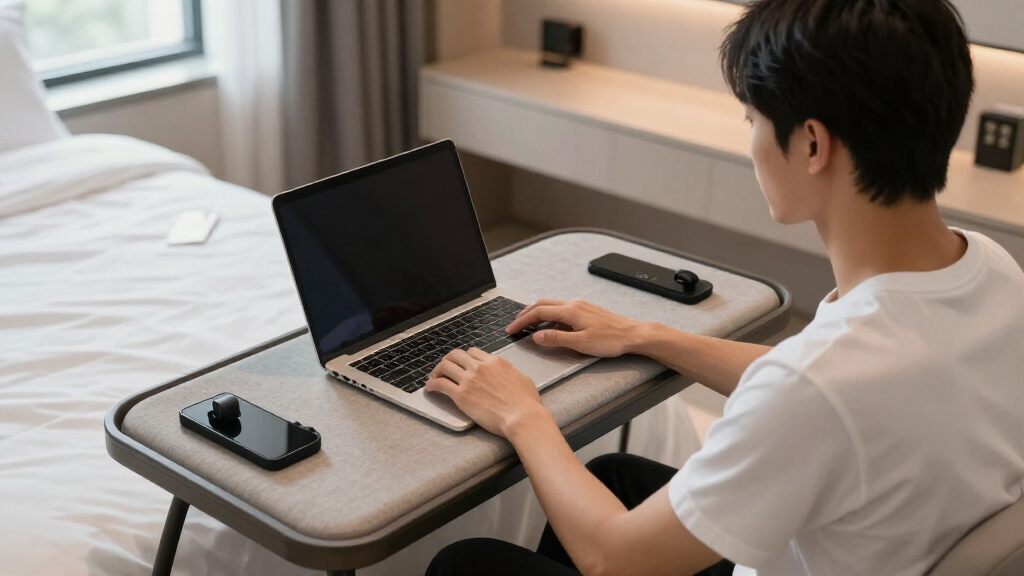
Start with alignment, not furniture. Books, luggage, pillows, and a separate input device can turn an improvised corner into a healthier workstation.
Elevate the screen
Use a foldable stand, stacked books, or a sturdy suitcase. Keep the screen centered so your head stays upright instead of drifting forward.
Detach your hands
An external keyboard and compact mouse let the laptop stay high while your elbows remain close to your body and your shoulders stay relaxed.
Stabilize your back
Fill the gap behind your lower back with a pillow or folded towel. Keep both feet supported and avoid sliding into a slouch.
Books + suitcase
Build a stable platform, test for wobble, and leave enough ventilation around the laptop.
Headboard + firm cushion
Sit upright with back support and raise the device. Avoid unsupported work with the laptop flat on your thighs.
Comfort in limited space
These three adjustments deliver the greatest return: better neck alignment, better spinal support, and regular recovery from static posture.
| Rule | What to do | Why it matters | Quick check |
|---|---|---|---|
| Rule 01 Elevate | Raise the laptop until the top of the screen is close to eye level. Center it directly in front of you. | Reduces prolonged downward bending, muscle fatigue, shoulder tension, and forward-head posture. | ✓Your chin stays level while reading. |
| Rule 02 Support | Use a travel pillow, folded towel, or headboard to support the natural curve of your lower back. | Helps maintain spinal alignment and prevents the body from collapsing into an unsupported slouch. | ✓Your shoulders feel loose, not rounded. |
| Rule 03 Interrupt | Every 20 minutes, look away for 20 seconds and add at least 30 seconds of stretching or movement. | Promotes circulation, rests the eyes, reduces stiffness, and refreshes concentration. | ✓You change position before discomfort begins. |
Small accessories, large ergonomic return
A travel setup does not need to be heavy. Prioritize tools that separate screen height from hand position and fold flat when the workday ends.
Setup impact profile
Practical value for a compact travel workstation, based on posture support and ease of deployment.
Act before soreness becomes pain
Tension is feedback. Reassess the screen, chair, back support, lighting, and break rhythm as soon as symptoms appear.
Your body’s check-engine lights
Loosen neck and shoulders
Sit tall and glide the chin straight back without tipping the head. Release slowly.
Lift both shoulders toward the ears, pause briefly, then let them drop.
Bring one ear toward one shoulder without lifting the shoulder. Switch sides.
Rise from the chair, extend upward, and take several relaxed breaths.
Notice discomfort? Respond in three moves.
Hotel-room ergonomics FAQ
The same principles apply across desks, beds, couches, tablets, and phones: raise the viewing surface, support the body, and interrupt prolonged stillness.
What if there is no space for a stand?
Use stable books, luggage, or another firm surface. Add an external keyboard whenever the screen is raised.
How often should I pause?
Every 20 minutes, look about 20 feet away for 20 seconds. Add a short stretch or posture change.
Can phones and tablets cause the same strain?
Yes. Support them closer to eye level and avoid long sessions with the head angled downward.
Can I work comfortably without a desk?
Use firm back support, keep the torso upright, elevate the device, and treat soft seating as a short-session option.
Elevate the laptop, use a separate keyboard and mouse, support your back, and take frequent movement breaks. A few portable tools—and a few hotel-room objects—can protect your neck wherever work takes you.
How to Keep Your Laptop at Eye Level Without Fancy Gear
When you’re traveling, a laptop at eye level becomes your best friend in avoiding neck strain. Place your device on a stack of books, a portable stand, or even a sturdy suitcase. For example, you might use a small, foldable laptop stand that weighs nothing but offers solid support. Keep your neck straight, and avoid looking down for hours—your future self will thank you.
Maintaining a neutral neck position by elevating your screen isn’t just about comfort; it directly impacts your musculoskeletal health. When your neck is consistently bent downward, it increases the strain on cervical muscles and ligaments, which can lead to discomfort, stiffness, or even chronic pain over time. By elevating your screen, you distribute the weight of your head more evenly, reducing muscle fatigue and preventing long-term issues. This simple act also encourages better posture, which can improve concentration and reduce the risk of headaches caused by tension. The tradeoff might be a slight inconvenience in setup, but the health benefits far outweigh it, making this a crucial step in your ergonomic toolkit.
Products Worth Considering

DEWALT 15 Amp 8-1/4-Inch Compact Portable Jobsite Table Saw (DWE7485)

EGO Power+ 3-Gallon Compact Cordless Wet/Dry Vacuum, 85 CFM (WDV0300)

DEWALT DWE7491RS 10-Inch Jobsite Table Saw with Rolling Stand
As an affiliate, we earn on qualifying purchases.
The Best Portable Accessories to Keep Your Neck Happy
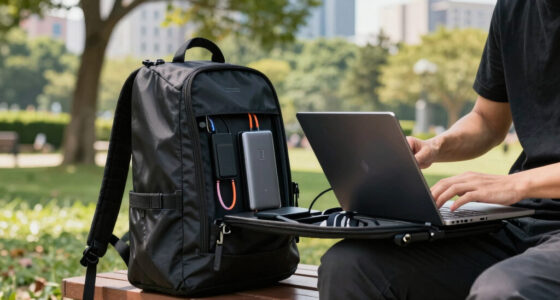
When space is tight, tiny tools become your best allies. Think lightweight, foldable laptop stands, external keyboards, and compact mice. Some popular options include adjustable stands that fold flat, which you can stash in your travel bag. Pair these with an external keyboard and mouse to keep your laptop at a comfortable height.
Using these accessories isn’t just about convenience; it’s about creating a workspace that minimizes strain and maximizes comfort. External keyboards and mice allow you to position your laptop at an optimal height without sacrificing comfort, reducing the tendency to hunch or crane your neck. Foldable stands are especially useful because they don’t add bulk to your luggage and can be quickly deployed. The tradeoff is investing in these tools, but in return, you gain a portable setup that supports healthy posture, which can prevent fatigue and long-term musculoskeletal problems. It’s a small investment for a significant health benefit, especially during extended work sessions.
The 3 Golden Rules for a Comfortable Work Spot in Limited Space
| Rule | What to Do | Why It Matters |
|---|---|---|
| Elevate Your Screen | Use a stand or stack books until the top of your screen is at eye level. | Prevents neck from bending forward or looking down, reducing strain. When your screen is at eye level, your neck maintains a neutral position, which reduces muscle fatigue and the risk of developing chronic neck issues. Proper elevation also encourages better posture, which can alleviate shoulder tension and improve overall comfort during long work sessions. |
| Support Your Back | Use a travel pillow or lean against the headboard for lumbar support. | Keeps your spine aligned and avoids slouching. Proper lumbar support helps distribute your weight evenly and maintains the natural curve of your spine, preventing slouching that can lead to back pain and muscle strain. This support is especially important in limited spaces where ergonomic chairs aren’t available, and it helps sustain comfort during extended periods of sitting. |
| Take Frequent Breaks | Every 20 minutes, look away and stretch for at least 30 seconds. | Reduces muscle fatigue and promotes circulation. Regular breaks prevent muscles from becoming stiff and reduce the risk of repetitive strain injuries. They also give your eyes a rest, decreasing eye strain, and promote mental refreshment, which can enhance productivity and focus. The tradeoff is a slight interruption to work flow, but the health benefits are well worth it. |
Simple Exercises to Loosen Up Your Neck and Shoulders
Even with perfect setup, tension sneaks in. Incorporate quick stretches like neck rolls, shoulder shrugs, or chin tucks. For example, sit upright, slowly tilt your chin to your chest, hold for five seconds, then lift your chin toward the ceiling. Repeat five times.
These exercises are more than just quick fixes; they help maintain flexibility and prevent stiffness that can develop from prolonged static postures. Regularly stretching releases muscle tension, improves blood flow, and reduces the likelihood of headaches or neck pain that might otherwise escalate into more serious issues. Incorporating these simple movements into your routine ensures that your muscles stay loose and resilient, even in constrained environments. The tradeoff is minimal effort with maximum benefit, making them essential for sustained comfort during travel.
How to Spot and Fix Signs of Neck Strain Before It Gets Worse
Early signs of neck strain include soreness, stiffness, or headaches. If you notice these, reassess your setup immediately. Feel your muscles—if they’re tight or tender, it’s time to adjust your position or take a break.
Recognizing early symptoms is crucial because ignoring them can lead to more severe issues like chronic pain, reduced mobility, or nerve impingement over time. Addressing discomfort promptly by adjusting your setup, stretching, or taking a break can prevent these problems from developing. For instance, a traveler might wake up with a stiff neck after a long flight—this is a warning sign that your muscles are under stress. Using proper ergonomic techniques and listening to your body’s signals can help you maintain a healthy neck and avoid long-term complications. The tradeoff is immediate discomfort, but acting early saves you from future pain and medical intervention.
Frequently Asked Questions
Can I really prevent neck pain in a hotel room?
Absolutely. The key is maintaining a neutral neck position, which you can do by elevating your laptop and supporting your back. Small adjustments make a big difference over time.
What if there’s no space for a stand or extra accessories?
Use what you have—stack books, lean against the headboard, or sit on a firm cushion. The goal is to keep your screen at eye level and support your posture as best as possible.
How often should I take breaks during a work session?
Follow the 20-20-20 rule: every 20 minutes, look at something 20 feet away for at least 20 seconds, and stretch or move around for a minute. This helps prevent muscle fatigue and eye strain.
Are tablets and smartphones also causing neck strain?
Yes, especially when you look down at your device. To counteract this, hold devices at eye level or use stands, and limit continuous device use.
Any quick tips for working comfortably in bed or on a couch?
Use pillows to support your back and elevate your device. Sit upright rather than slouching, and avoid prolonged neck bending—your muscles will thank you.